 Internet is a great place to learn, play, communicate and work. However, it also includes threats that we are trying to eliminate but it seems we can’t fulfill this difficult task just after a day or two. One of the simplest methods is to block bad websites aside other harder methods that only experts understand and do. In this post, I list out various ways to block websites: on certain browsers, on all browsers on a PC, and on all PCs on a local network.
1. How to block websites on certain browsers
IE and other browsers based on IE (Avant, TheWord, Maxthon…)
IE is still the most browser used by people now although there are many web developers out there are trying to kill it. You can easily find ways to uninstall IE away from your Windows but for me, I still keep this essential browser on my PC because there are many applications use its web engine to display content as well as do some web tasks.
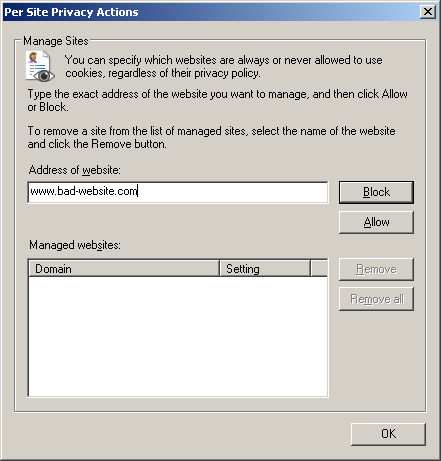
To block websites on IE, simply go to Tools > Internet Options > select Privacy tab, then click on Sites button.
Next, enter website you want to block in the Address of website textbox and hit Block button
Firefox and other browsers based on Firefox (Flock, SeaMonkey, Orca…)
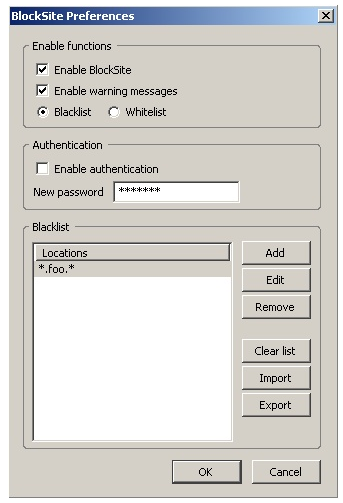
While IE is the most browser used by people now, I believe Firefox is the most powerful browser since its ability can be easily extended by using a add-on. To block websites, you may like BlockSite which offers a flexible method.
Once installed, open the BlockSite Preferences, click on Add button and enter websites your want to block. The thing I love this add-on is that you can use wildcard to block websites. For example, you can block all websites about game by entering the term: *game*.*
And in case you don’t want other to change the preference, you may also set a new password to protect it.
 2. How to block websites on all browsers on a PC
Since there are more and more new browsers appear on the market and two tricks above can’t block websites on those new browsers, you may ask this question “How to block websites on all browsers on a PC?”. The complete answer that every geek would tell you that is to use host files. In fact, it is just a text file contain information about domains and IP addresses. This file will be automatically loaded by Windows and it is used to map domains to IP addresses. So by simply editing a domain to a wrong IP address (it is usually 127.0.0), you can block that domain on your PC.
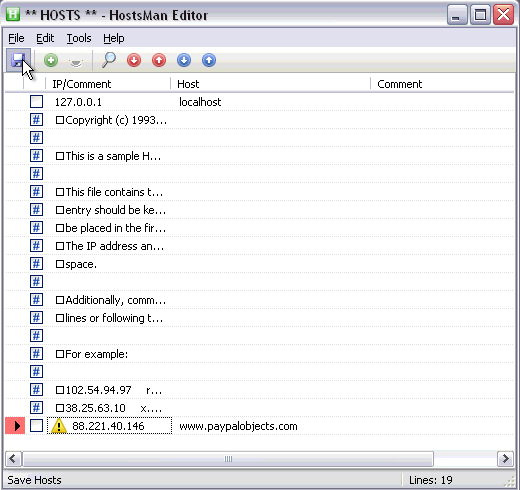
You can edit this file using any text editor and most posts out there tell you to use notepad. For me, it’s the fastest and easiest way to do, but not the most effective especially when you need to edit this file so often. I prefer HostsMan which is a free host files editor for this task.
Once installed, go to Tools > HostsMan Editor, then block or unblock a website in this window.
3. How to block websites on all PCs on a local network?
If you want to block websites on a PC, you’re almost done. However in case you want to block websites on all PCs on your local network and let’s assume that applying these tricks on each PC is impossible, doing some hacks on the router seems to be the most effective way. Here I tell you how to do this with OpenDNS. You must already configure your router to use OpenDNS as well as register a free account there.
Sign in your account, click on Dashboard, then Settings. If OpenDNS already indicates your external IP address, leave it and click Add This Network otherwise enter your IP into boxes and click the same link.
Then enter the link to want to block into the textbox under Manage individual domains section and choose Always block from the left dropdown.
 Finally, click ADD DOMAIN and APPLY button then reset your router.


 Amazon S3


 Internet is a great place to learn, play, communicate and work. However, it also includes threats that we are trying to eliminate but it seems we can’t fulfill this difficult task just after a day or two. One of the simplest methods is to block bad websites aside other harder methods that only experts understand and do. In this post, I list out various ways to block websites: on certain browsers, on all browsers on a PC, and on all PCs on a local network.


 Facebook has been founded in 1st Feb 2004. It is the world's largest social networks with over 400 million users. It had beaten many social networking sites like orkut, my space etc.


 Recently, I’ve written posts about using

 Some people use YouTube to share interesting videos, some others take advantage of it to market their products, and the rest simply visit the site to watch the videos. To be able to get all of the features one would need to create an account. However, there are some users that after some time decide to delete their YouTube accounts for some reason. If you also want to remove your YouTube account, then this is the quick guide on how to do it.
